Why Is My Website Not Showing on Google? How to Check and Fix It

Why is my website not showing on Google? In most cases, Google hasn't indexed your site yet, or something is actively blocking its crawler. A noindex tag, a robots.txt rule, a password-protected page, or a "coming soon" screen can each keep your site completely invisible. The first thing to do is a site: search to confirm whether Google has indexed you at all.
As the best digital marketing agency in Jaipur that audits client websites every week, we see the same handful of causes behind this problem. This guide walks through all twelve of them, with the exact steps to fix each one.
How to Check If Google Has Indexed Your Website
Before you start fixing issues, confirm what the actual problem is. There's a meaningful difference between a site Google hasn't found and a site Google found but won't rank, and the solutions are completely different.
Skipping this check is how people spend weeks building backlinks when the real issue is a single noindex tag.
Run a Site: Search
Open Google and type site:yourwebsite.com in the search bar. Turn SafeSearch off first; Google itself recommends this for a clean result. If pages show up, Google has indexed at least part of your site. If you see nothing, either Google hasn't crawled you yet, or something is blocking it.
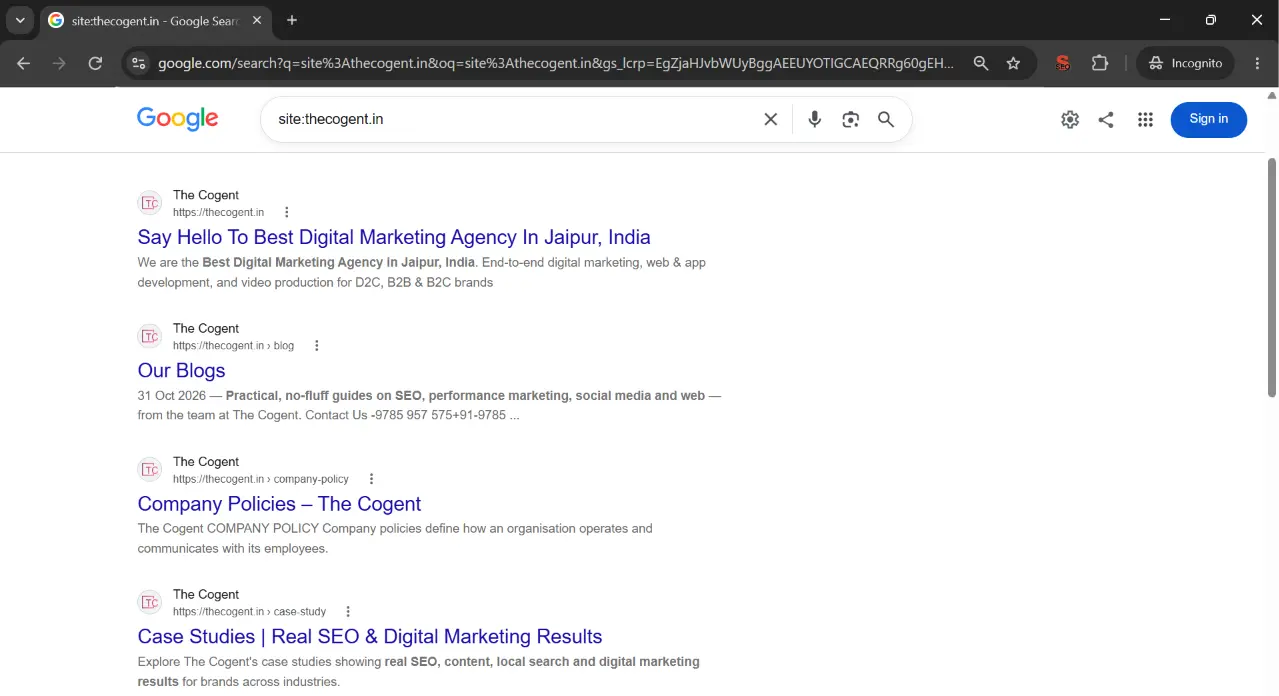
What Your Results Mean
|
What you see in the site: search |
What it means |
What to do next |
|
No results at all |
Google hasn't indexed your site |
Check robots.txt, noindex settings, submit a sitemap in Search Console |
|
Homepage only |
Most pages are blocked or orphaned |
Check internal links, sitemap, and page-level noindex tags |
|
Pages show but not for your keywords |
Indexing is fine; ranking is the issue |
Work on content quality, search intent, and backlinks |
|
One specific page is missing |
That page has a block or crawl error |
Use URL Inspection in Search Console to diagnose it |
Why Your Website Is Not Showing on Google at All
This section covers indexing problems, when your site: search returns nothing or close to nothing. These causes have nothing to do with ranking yet. If your site doesn't appear anywhere on Google, work through the following causes in order.
Your Website Is New
Google takes time. A brand-new site typically takes anywhere from a day or two to a few weeks to appear, according to Google's own documentation. That's just how the crawl queue works. When no other site links to yours yet, Googlebot has no obvious reason to visit.
How to check: Do a site: search. No results on a domain launched last week is normal. Check your launch date before assuming something is broken.
Fix: Set up Google Search Console, submit your XML sitemap, and use the URL Inspection tool to request indexing for your homepage. Add internal links across your pages so Googlebot has clear paths to follow. Even one or two quality links from other websites speed up discovery.
A Noindex Tag or "Discourage Search Engines" Setting Is On
This is one of the most common reasons a website is not showing on Google, and it's frequently set by accident. A noindex meta tag is an explicit instruction to Google: don't index this page. WordPress has a setting under Settings › Reading called "Discourage search engines from indexing this site." Developers turn it on during builds and sometimes leave it on after launch.
How to check: Right-click any page and choose "View page source." Search for noindex. If it's there, that's your problem. In WordPress, go to Settings › Reading and confirm the box is unchecked. Squarespace and Wix both have per-page SEO settings worth checking in their page editors too. You can also paste the URL into URL Inspection. If "Indexing allowed?" says No, a noindex tag or header is blocking it.
Fix: Remove the noindex tag or uncheck that WordPress option. After that, go to Search Console's URL Inspection tool and request indexing again. Also check that robots.txt isn't blocking the same page. Robots.txt controls crawling and noindex controls indexing; our guide on robots.txt vs noindex explains the difference.
Robots.txt Is Blocking Googlebot
The robots.txt file tells crawlers which parts of your site they can access. A single line, Disallow: /, blocks everything. It's a blunt rule, and when it's wrong, your entire site vanishes from search. For a simple breakdown of how this file works, see our guide on robots.txt in SEO.
How to check: Visit yourwebsite.com/robots.txt directly. Look for Disallow: / under a User-agent: * or User-agent: Googlebot block.
Fix: Remove or correct the Disallow rule. Then open Settings › robots.txt in Search Console and choose Request a recrawl, so Google picks up the new file. To confirm the fix, inspect your homepage with URL Inspection: "Crawl allowed?" should show Yes.
Google Can't Find Your Pages (No Sitemap or Internal Links)
Googlebot follows links. Pages with no internal links pointing to them and no sitemap to guide the crawler are effectively invisible; these are called orphan pages. Your homepage might show up in a site: search while everything else is missing.
How to check: Run a crawl with Screaming Frog or check the Page indexing report in Search Console. Look for pages that have zero internal links or appear in the "Discovered - currently not indexed" report.
Fix: Create and submit an XML sitemap in Google Search Console. Build internal links from your homepage and other indexed pages to anything that's missing coverage. A clean website structure makes a difference; Googlebot should never have to click more than a few times to reach any page.
The Site Is Behind a Password, Coming-Soon Page or Paywall
Googlebot can't log in. If your site is behind a login screen, a maintenance plugin, or a hard paywall, Google sees nothing beyond that barrier. The result is a site not appearing in Google search at all.
How to check: Log out of your site and visit it in an incognito window. What you see is roughly what Googlebot sees. If you hit a gate of any kind, that's the issue.
Fix: Disable the coming-soon or maintenance plugin, and remove password protection from every page you want on Google. For paywalled articles, let Googlebot see the full content and mark the paywalled section with Google's paywalled content structured data, so Google doesn't treat it as cloaking.
A Manual Action or Security Issue Is Affecting the Site
Google may apply a manual action to sites that break its Search Essentials guidelines, for example with hidden text, spammy links or cloaking. A hacked site serving malware can also be flagged automatically. Either way, visibility drops sharply.
How to check: Log into Search Console. Go to Security & Manual Actions and read both reports. Google spells out what triggered the issue.
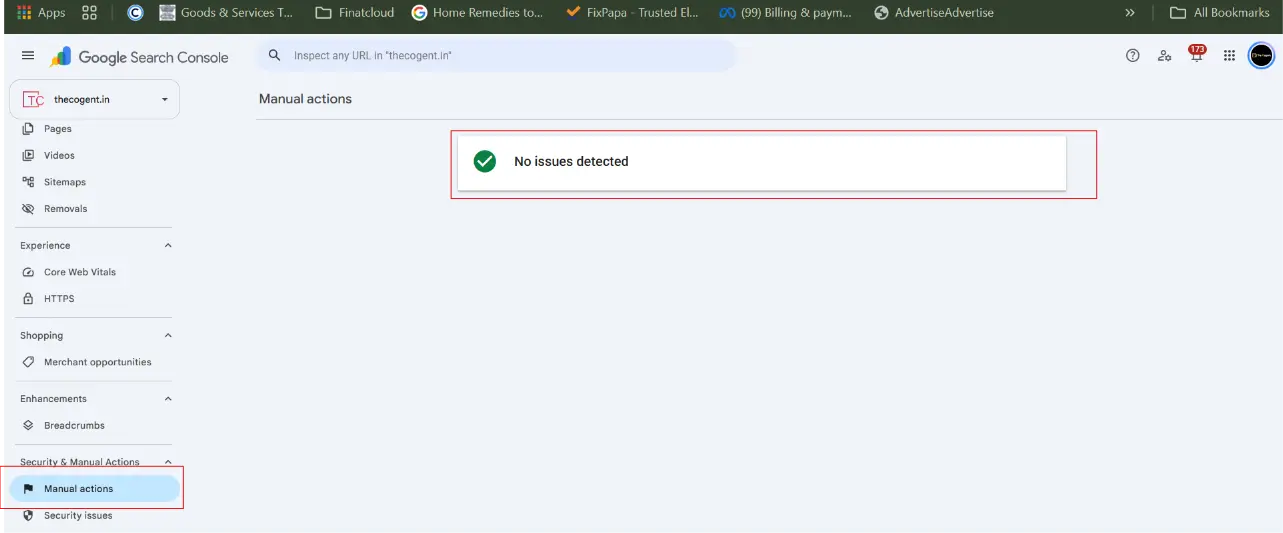
Fix: Correct everything Google flagged. For a manual action, submit a reconsideration request from the Manual actions report. For a security issue, clean the hacked or infected files, then click Request Review in the Security issues report.
You Moved or Redesigned the Site Without Redirects
Switching domains, moving from HTTP to HTTPS, or restructuring URLs without 301 redirects breaks all your indexed pages. Google's index still points to the old addresses. Visitors and Googlebot land on 404 errors.
How to check: Use URL Inspection to check a few old URLs. You need to see whether they return a 301 to the new location. Then open Indexing › Pages in Search Console and look for a spike in "Not found (404)" errors.
Fix: Set up 301 redirects from every old URL to its new equivalent. Update your XML sitemap with the new URLs and resubmit it. If the move involved an HTTPS migration, make sure all internal links use the HTTPS version. A proper technical SEO audit before any migration prevents most of these issues.
Why Your Indexed Website Isn't Showing for Your Keywords
If your site: search returns results, Google has indexed you. The problem is now ranking, not access. A website not ranking on Google despite being indexed is a different challenge with different solutions.
Getting indexed is just the starting line. Ranking for real search terms depends on content quality, page authority, and how well your pages match what searchers actually need.
Duplicate Pages or the Wrong Canonical URL
When Google finds multiple URLs with identical or near-identical content, it picks one to rank. It doesn't always pick the one you want. A canonical tag tells Google which version is the definitive page.
How to check: Inspect the page in URL Inspection and compare "User-declared canonical" with "Google-selected canonical". If they differ, Google is treating another URL as the main version. You can also view the page source and look for <link rel="canonical">. Also check whether your site has HTTP and HTTPS versions, or www and non-www versions, all accessible without redirects; that's duplicate content at the domain level.
Fix: Add the correct canonical tag to every important page. Set up redirects for duplicate domain versions. Duplicate pages are also one of the most common reasons a URL ends up as crawled - currently not indexed in Search Console.
Thin Content or a Search Intent Mismatch
A page can be indexed and still not rank if it offers little value. Thin content, a 150-word page with no real depth, rarely competes. A page targeting the right keyword but answering the wrong question (mismatched intent) has the same problem.
How to check: Search your target keyword yourself. Look at what actually ranks. Are the results how-to guides, product pages, comparison articles, or local listings? Compare that format to your own page.
Fix: Rewrite the page to match what searchers are actually after. Add genuine depth, examples, data and specific steps. If the top results are long guides, a short stub won't cut through. The goal isn't length; it's usefulness.
Low Authority and Few Quality Backlinks
Google treats backlinks as endorsements. A site with no backlinks or only low-quality ones is harder to rank, especially in competitive spaces. This is the core problem that off-page SEO techniques are designed to solve.
How to check: Use Ahrefs' free Backlink Checker or Moz Link Explorer to see who links to you, and compare that with the sites ranking above you. Domain Rating and Domain Authority are tool scores, not Google metrics.
Fix: Build links through digital PR, guest posts, genuine outreach, and content that others naturally want to reference. A handful of quality links outperforms hundreds of weak ones.
A Google Algorithm Update Changed Your Rankings
Rankings aren't permanent. Core updates shift large portions of search results. A site can drop sharply even when nothing on it has changed. That's frustrating, but it's how core updates work.
How to check: Cross-reference any traffic drops with dates on the Google Search Status Dashboard. If the drop aligns with a confirmed update, that's likely the cause. Our notes on Google algorithm update recovery go deeper on what to look for.
Fix: Read the guidance around that specific update and assess your site honestly against it. Google's consistent advice is to improve overall content quality and trustworthiness. Recovery often comes with the next core update, several months out.
Your Business Has No Google Business Profile
For local searches such as "dentist near me" or "agency in Jaipur," the local pack (the map with three businesses) dominates the first page. No verified Google Business Profile means you won't appear there, regardless of how the website itself ranks.
How to check: Search your business name on Google. If no profile appears on the right, you likely don't have one set up. You can confirm at business.google.com.
Fix: Create and verify your profile. Keep your name, address, and phone number consistent with what's on your website. Add photos, reply to reviews, and post updates regularly. See our ‘Add your business to Google’ guide for the full setup.
FREE INDEXING CHECK
Not sure why your website isn't showing on Google?
Get a free website indexing check from The Cogent. We'll audit your Search Console, check for crawl blocks, and tell you exactly what's holding your site back.
How to Get Your Website on Google: Step by Step
Once you've identified the issue, work through these steps in order.
-
Verify your site in Google Search Console. Go to search.google.com/search-console, add your property, and confirm ownership.
-
Submit your XML sitemap. In Search Console, open Sitemaps and enter your sitemap URL, usually yourwebsite.com/sitemap.xml. Most CMS platforms will generate one for you. This tells Google exactly which pages you want indexed.
-
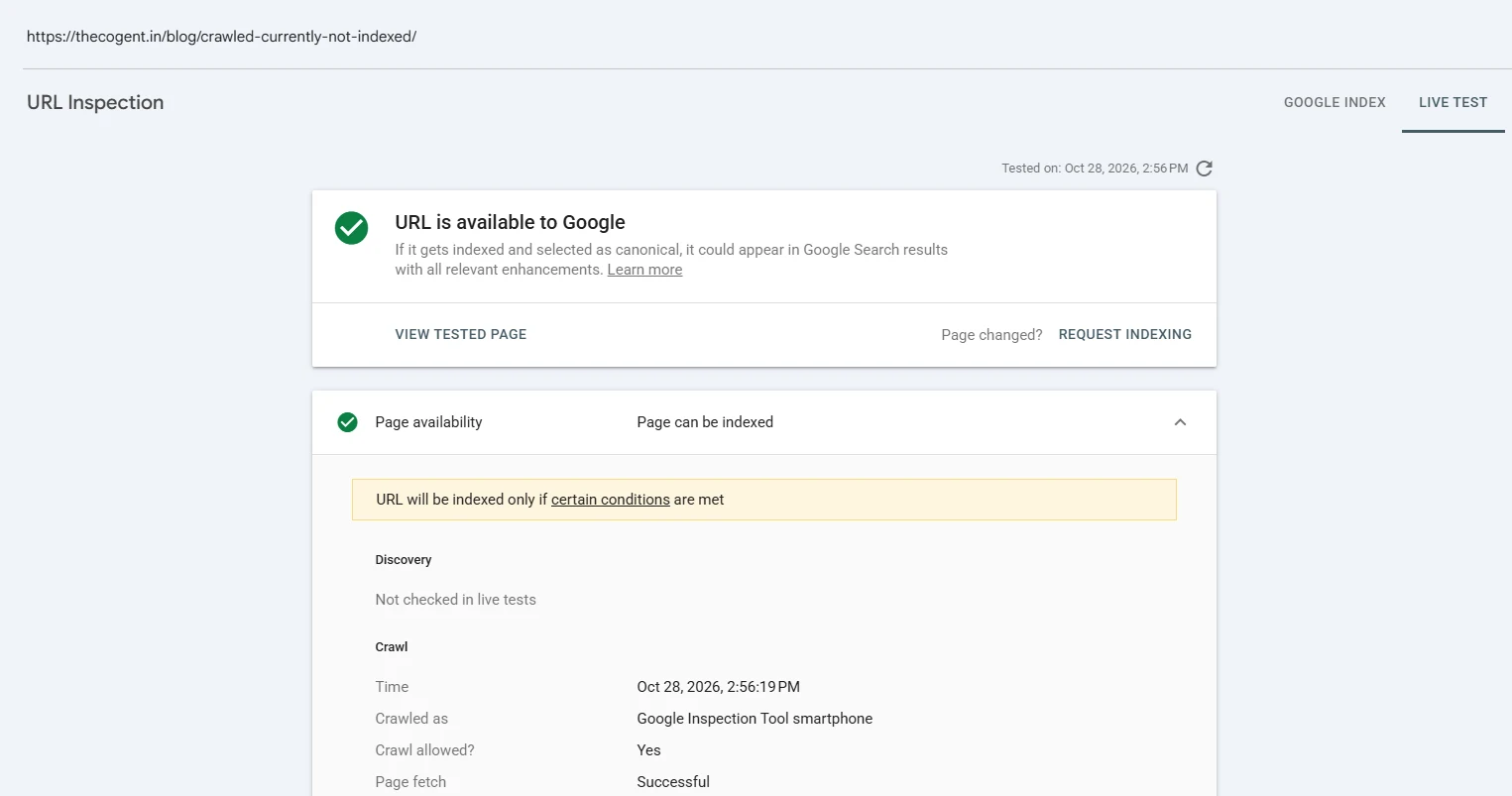
Inspect your homepage with the URL Inspection tool. Type your homepage URL into the inspection bar at the top. The tool shows whether the page is indexed, when Google last crawled it, and any issues found. If it's not indexed, click "Request indexing." Google's URL Inspection tool documentation explains what each field in the report means.
-
Check the Page indexing report. Under Indexing › Pages, you'll see which pages are indexed and which aren't, along with specific reasons. Common ones include "Crawled - currently not indexed," "Duplicate without user-selected canonical," and "Blocked by robots.txt."
-
Check Manual actions and Security issues. Go to Security & Manual Actions in the left-hand menu. If anything is flagged, resolve it before anything else. These don't clear up on their own.
-
Wait at least a week, then re-check. Google recommends waiting at least a week after requesting indexing or fixing an issue before expecting to see changes. Re-inspect the URLs after that window and confirm they've been indexed. See Google's "Why is my page missing from Google Search?" for more context on what can delay indexing.
Why Choose The Cogent for Technical SEO?
A website not indexed by Google isn't just a technical problem. It's lost traffic and lost revenue every day it stays invisible. Most fixes are simple, but finding the right one quickly takes experience.
The Cogent is a digital marketing agency and website development company in Jaipur that specialises in technical SEO audits and SEO services. Because we build websites too, we often catch indexing problems that start in the code, such as a leftover noindex tag or a missing redirect.
Our process starts with a full Search Console review, crawl analysis, and content audit. We walk you through what we found, fix what needs fixing, and track the results. If your site isn't showing up on Google and you don't know why, that's precisely where we come in.
Conclusion
A website not showing on Google usually comes down to one of a small number of causes: a crawl block, a noindex setting, a missing sitemap, thin content, or not enough authority in a competitive space. Each has a clear fix. The key is diagnosing the right problem first, which is why the site: search and URL Inspection tool are always the right starting point.
Don't guess. Run the checks, review Search Console, and work through the causes in order. If the issue doesn't resolve after a week, an experienced set of eyes saves a lot of wasted time.
TALK TO AN SEO EXPERT
Still can't figure out why your site isn't showing on Google?
Send us your website URL. Our SEO team will check it for free, pinpoint the problem and show you exactly how to fix it.
Frequently Asked Questions
Yes. Submitting your site through Search Console costs nothing. Google also discovers and indexes sites organically without any payment. You don't need to pay to appear in search results.
Google says this ranges from a day or two to a few weeks for a new site. It depends on how discoverable your site is, whether others link to it, whether you've submitted a sitemap, and how active Googlebot is in your category. After requesting indexing in Search Console, wait at least a week before re-checking.
You can handle the basics: setting up Search Console, submitting a sitemap, fixing noindex settings and writing good content. Technical issues like redirect chains, canonical errors, and crawl budget problems are harder to diagnose without experience.
A security warning means Google has found a problem such as malware, hacked pages, phishing content or unwanted software on your site. Open the Security issues report in Search Console to see the exact issue and the affected URLs. Clean the files, update your CMS and plugins, change your passwords, then click Request Review in the same report. Google removes the warning once it confirms the site is clean.
Google takes the favicon from the link rel="icon" tag in the head section of your homepage. If it isn't showing, check that the icon is square and ideally 48×48 pixels or larger, and that robots.txt doesn't block the icon file or your homepage. Then request indexing for your homepage in Search Console. Google can take a few days or weeks to update it.
Yes. Google's AI Overviews pull from multiple sources and don't follow standard rankings strictly. Pages that answer questions clearly and demonstrate strong E-E-A-T signals have a reasonable chance of appearing.