
What is robots.txt in SEO? It's a plain text file at the root of your website that tells search engine crawlers which URLs they may crawl and which to skip. Robots.txt in SEO helps you keep crawlers away from admin areas, internal search results and duplicate filter pages, so they spend their time on the pages you want found. It does not remove pages from Google or protect private content.
But this part of your website should be managed carefully because incorrect directives can block important pages from being indexed in web search results. To manage this text file, this guide explains how to create robots.txt, configure suitable rules, test crawl permissions and resolve common errors related to website crawlability.
What Is Robots.txt in SEO?
In search engine optimisation (SEO), a "robots.txt" is a simple text document standardised under the Robots Exclusion Protocol (RFC 9309). This document provides instructions for search engine crawlers (like Googlebot) on what parts of your website it can access and what parts it can not.
The Google robots.txt guideline say you shouldn't use this file to keep a page out of search results. If other pages link to a blocked page, Google can still index its URL without crawling it.
How Does a Robots.txt File Work?
A robots.txt file tells search engine crawlers which URLs on your site they may request. Before crawling a site, Googlebot fetches its robots.txt file and follows the rules written for its user-agent.
Where Is Robots.txt Located?
The robots.txt file must be located in the root folder of your website. For example, to control crawling on all URLs under https://www.example.com/, the robots.txt file should be located at https://www.example.com/robots.txt.
The rules apply only to the exact host and protocol where the file sits, so https://example.com/robots.txt doesn’t cover https://blog.example.com/. Each subdomain needs its own file.
What Happens When a Robots.txt File Is Missing?
When there is no robots.txt file, the URL returns to HTTP status codes such as ‘404 Not Found’. Search engines such as Google or Bing consider such sites to have no restrictions on crawling if there is no robots.txt file.
Understanding Robots.txt Directives and Syntax
Mastering robots.txt syntax and directives is essential because these commands instruct crawlers about what paths on the website can be accessed. The format of each of the following commands is fairly simple, making it easier to set the permissions for individual bots and URLs.
User-agent, Disallow, and Allow
User-agent refers to the bot to which the rule applies, such as a specific crawler like Googlebot, or an asterisk (*) to target all search engine crawlers. The robots.txt Disallow rule is used to indicate which paths should not be accessed by the specified bot, whereas Allow will give permission to access the path.
Sitemap, Crawl-delay, and Wildcard Rules
The Sitemap directive gives the complete URL of an XML sitemap, which helps the crawler map your website structure and locate all important pages. The Sitemap directive is supported by Google. But Crawl-delay is not supported by Google, although it is supported by other crawlers. Wildcards such as ‘*’ are used to match URLs, and ‘$’ indicates the end of a URL.
The table below lists the main robots.txt directives, shows the syntax for each one and notes whether Google supports it:
|
Directive |
Purpose |
Example |
Google support |
|
User-agent |
Selects the crawler |
User-agent: Googlebot |
Yes |
|
Disallow |
Restricts a path |
Disallow: /private/ |
Yes |
|
Allow |
Permits a path |
Allow: /private/public/ |
Yes |
|
Sitemap |
Specifies a sitemap URL |
Sitemap: https://example.com/sitemap.xml |
Yes |
|
Crawl-delay |
Requests a pause between crawls |
Crawl-delay: 10 |
No |
|
* and $ |
Match URL patterns |
Disallow: /*?sort= |
Yes |
How to Find and Create a Robots.txt File
When creating a robots.txt file, you must first check what your existing configuration is set to do or determine whether you need to make a new one. Either way, you can use the following process to find and create a robots.txt file:
Step 1: Check Your Existing Robots.txt File
Type https://example.com/robots.txt, replace the example domain with your website address and click ‘Enter’ on your PC. You will be redirected to a page where you can review existing instructions for what search engines are guided to do, or you will get a 404 error if you don’t have a robots.txt file. This is the first file to check when Search Console reports pages as "Blocked by robots.txt". It isn't the cause of pages marked "crawled - currently not indexed", because Google has already crawled those.
Step 2: Create the File and Add Crawl Rules
You can design the robots.txt file using any text editing application you have on your computer. Open the text editing application, write the specified crawling rules in the application and save it as a .txt file with UTF-8 character encoding. If you have a sitemap created for your website, mention the sitemap also in the “robots.txt” file. Name the file exactly robots.txt, in lowercase. Google reads only the first 500 KiB of the file, so keep it short.
Step 3: Upload Robots.txt to Your Website's Root Directory
Upload the robots.txt file into your site's root directory. When you have uploaded the robots.txt file into your root directory, it will appear at https://example.com/robots.txt. For complex platforms or multi-server setups, consulting an experienced website development company can help ensure files are deployed correctly to the root. The method of uploading the robots.txt file will depend upon which type of hosting service you are using.
Step 4: Verify That Search Engines Can Access It
To confirm the file is live, open https://example.com/robots.txt in your browser. Then open the robots.txt report in Google Search Console (under Settings) to confirm Google fetched it without errors.
Robots.txt Examples for Different Websites
A robots.txt file looks different from one site to the next. Evaluating your website structure and crawlability comes first, because bot behaviour depends on site architecture and on what you want search engines to find. Below are some samples of what a robots.txt file looks like for different websites:
Basic Robots.txt Example for a Standard Website
A typical robots.txt file example includes general crawling rules for all search engines, blocks access to private areas of the site (such as /admin/, /private/, /drafts/, /temp/ or /staging/), and directs the search engine bots to your main sitemap.
The following example illustrates the standard production website configuration:
User-agent: *
Disallow: /admin/
Disallow: /private/
Disallow: /drafts/
Disallow: /temp/
Disallow: /staging/
Sitemap: https://example.com/sitemap.xml
Robots.txt Example for WordPress
A standard robots.txt for WordPress implementation would allow complete access to front-end materials (such as CSS files, JavaScript assets, theme templates, plugin scripts and visual media) to all web crawlers. Googlebot will need to have unhindered access to crawl each component of a page.
The snippet outlined below demonstrates this standard implementation:
User-agent: *
Disallow: /wp-admin/
Allow: /wp-admin/admin-ajax.php
Sitemap: https://example.com/sitemap_index.xml
Robots.txt Example for an E-commerce Website
Many times, online storefronts spend excessive crawl budgets on duplicate URLs, an issue frequently identified during an ecommerce website audit. By blocking the crawl of faceted filters, search results, account profile pages, shopping carts or sorting options, you can preserve your automated crawling resourcesso crawlers focus on your product pages.
The sample directives outlined below reflect an effective online store setup:
User-agent: *
Disallow: /checkout/
Disallow: /cart/
Disallow: /search?*
Disallow: /*?sort=
Disallow: /account/
Sitemap: https://example.com/sitemap.xml
Don't block filter or sort URLs that you want indexed. If duplicates already use canonical tags, blocking them stops Google from seeing those tags.
How to Test Robots.txt and Check Crawl Restrictions
You can check if a website’s directives are active or not using a robots.txt tester, live inspection tools or a manual check in a web browser.
Here are some specific ways to test robots.txt and check your crawl policies for a site:
Check Crawl Permissions in Google Search Console
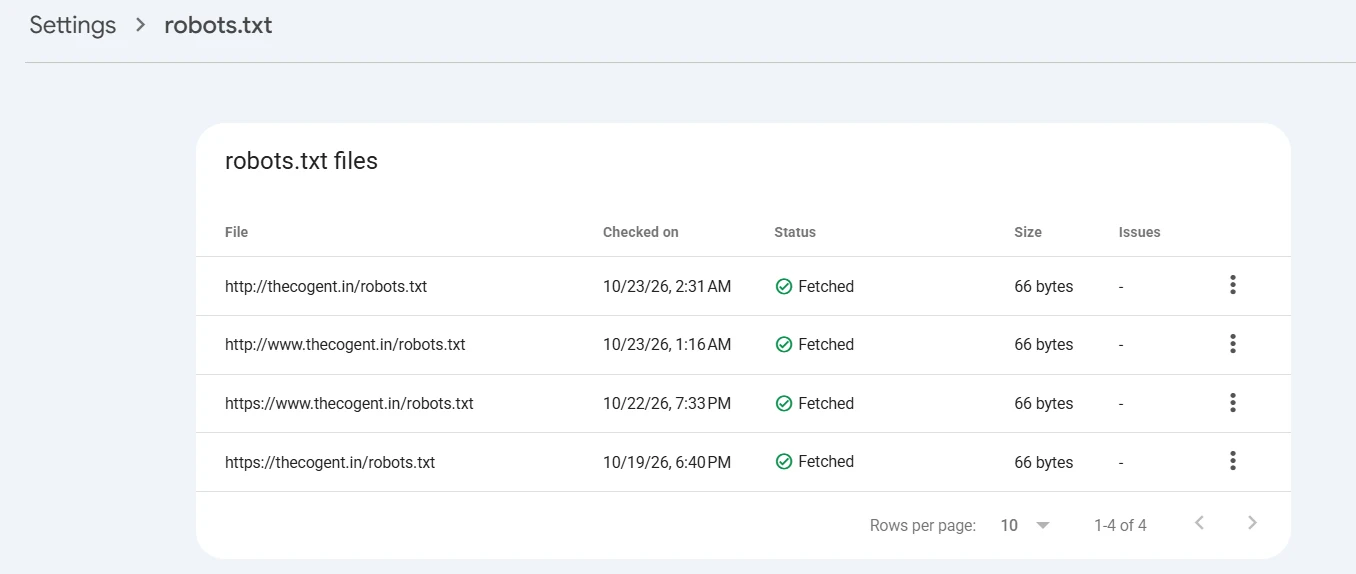
During a technical SEO audit, open the robots.txt report under Settings in Google Search Console. It shows each robots.txt file Google found for your site, when it was last checked, its fetch status and any errors or warnings. Google retired its old robots.txt Tester in 2023, so this report and URL Inspection are now the main ways to test robots.txt in Search Console.
Test Specific URLs Against Robots.txt Rules
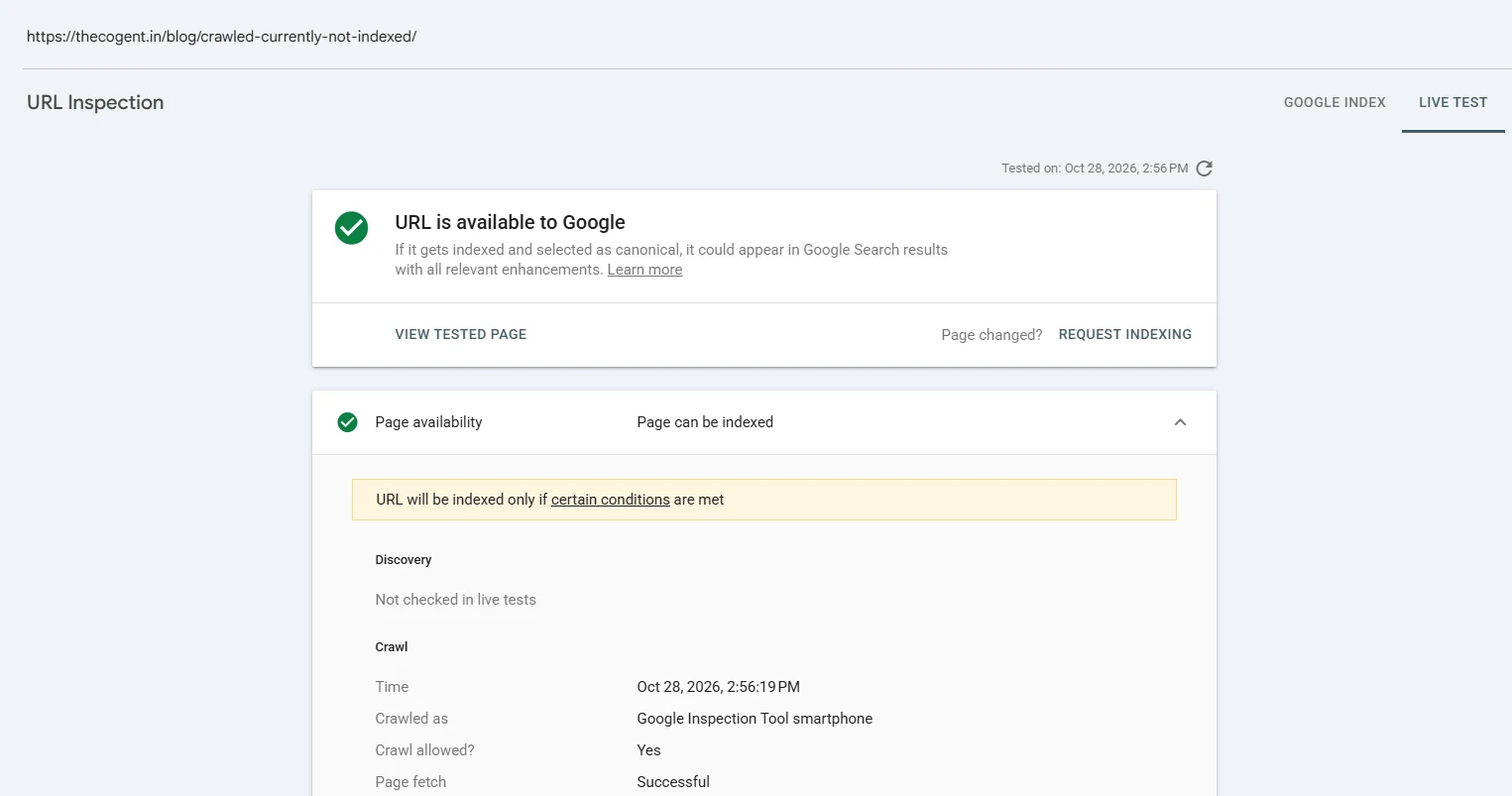
To check an individual page, enter the full page URL into the URL Inspection tool in Google Search Console and select ‘Test Live URL’. When the testing is done, check the 'Crawl allowed?' status. This status report will show whether a robots.txt rule blocks Google from accessing it. If crawling is blocked, review the matching directive and update it with the correct rules.
Verify Changes After Updating Robots.txt
After editing the file, open https://yourdomain.com/robots.txt in your browser and check that the new rules appear. Google usually caches robots.txt for up to 24 hours, so if the change is urgent, use "Request a recrawl" in the robots.txt report, then re-test the affected URL with URL Inspection.
Common Robots.txt Mistakes and How to Fix Them
The most common robots.txt mistakes are accidental blockage of important pages, blocking of essential website resources, conflicting rules and incorrect paths. Here is how each of these mistakes affects site crawling and ways to fix them:
Accidentally Blocking Important Pages or the Entire Website
Using Disallow: / blocks crawlers from accessing the entire website for the specified user-agent. This can lead to a sudden website traffic drop as search engines are prevented from recrawling pages.
To fix this: Check your robots.txt file for broad Disallow rules and make necessary changes so that important pages can be crawled.
Blocking CSS, JavaScript or Other Essential Resources
CSS and JavaScript files control how a page looks and works. If they're blocked, Google can't render the page the way users see it, which can affect how it understands the content.
To fix this: Review your Disallow rules for essential resources and allow Googlebot to access the files it needs. Next, use the URL Inspection tool in Search Console to check the live rendered result.
Incorrect Paths, Conflicting Rules and Unsupported Directives
An incorrect path, a wrong capital letter, conflicting rules or using directives the crawler does not recognise are frequent robots.txt errors that trigger severe crawling issues for websites.
To fix this: Check each path exactly as it appears in the URL, because paths are case-sensitive. When rules conflict, Google follows the most specific rule, the one with the longest matching path. If an Allow and a Disallow rule are equally specific, the Allow rule wins. For example, with Disallow: /shop/ and Allow: /shop/sale/, Google can crawl /shop/sale/ but not the rest of /shop/. Google ignores fields it doesn't support, such as Crawl-delay and noindex. Keep Crawl-delay only if you need it for other crawlers such as Bing, and use a meta robots tag for noindex.
Robots.txt Returning Errors or Being Placed in the Wrong Location
If robots.txt sits anywhere other than the root of the host, crawlers ignore it. Server errors cause a different problem. A 404 or other 4xx error is treated as if no file exists, so everything can be crawled. A 5xx error makes Google pause crawling the site for up to 12 hours, then fall back to the last cached copy for up to 30 days.
To fix this: Place the file at the root of the correct host, such as https://example.com/robots.txt, make sure it returns a 200 status, and check the robots.txt report for "Not fetched" errors.
Troubleshooting Checklist
-
Pages dropping out of search, or listed as “Blocked by robots.txt”: a broad Disallow rule such as Disallow: / is blocking them. Remove or narrow the rule.
-
Page looks broken in URL Inspection’s screenshot: CSS or JavaScript files are blocked. Allow the folders that hold them.
-
A rule isn’t working: check for a typo, the wrong letter case or a conflicting rule. Match the path exactly, and remember the longest rule wins.
-
The robots.txt report shows “Not fetched”: the file is in the wrong place or the server is returning an error. Put it at the root and make sure it returns a 200 status.
-
“Indexed, though blocked by robots.txt”: a blocked page is linked from other pages. Unblock it, then add noindex if it shouldn’t be in search.
-
Changes aren’t showing: Google caches the file for up to 24 hours. Use “Request a recrawl” in the robots.txt report.
Does Robots.txt Affect Google Indexing and Rankings?
Google can still index a blocked URL if other pages link to it. In Search Console, these appear as "Indexed, though blocked by robots.txt". If you want such a page in search, remove the blocking rule. If you want it out, unblock it and add a noindex tag, because Google can only see noindex on pages it can crawl.
Robots.txt vs Noindex: Crawling and Indexing Are Different
Robots.txt vs noindex covers two separate stages of search. Robots.txt controls crawling. It tells search engines which URLs they may request, and it helps manage crawler traffic and server load. It does not keep a page out of search results.
Noindex controls indexing. It tells Google not to store or display a specific webpage in its search results.
When Does Robots.txt Help Manage Crawl Budget?
Robots.txt helps manage crawl budgets by blocking Googlebot from wasting requests on low-value, duplicate, internal search results, login pages or infinite URLs. As part of comprehensive SEO services, this optimisation ensures bots spend their limited crawl time only on required pages.
Crawl budget is mostly a concern for large or fast-changing sites, such as stores with thousands of filter URLs. Google’s own crawl budget guidance is written for those sites. For a typical business website, robots.txt matters more for keeping crawlers out of low-value areas than for saving budget.
Conclusion
A properly configured robots.txt file helps search engines to crawl your site efficiently and access those pages that are most relevant. To do so, you should regularly review your directives, test all changes prior to publication, and ensure that the rules you have set up align with the structure of your site.
If you’re not sure whether your robots.txt is blocking pages you need in search, The Cogent, a digital marketing agency in Jaipur, can review it alongside your crawl and indexing settings in a technical SEO audit. Get in touch to request one.
Frequently Asked Questions
Robots.txt is a text file where site owners tell search engine bots which pages to crawl and which to skip.
Indirectly, yes. Keeping crawl traffic under control lets bots spend their time on the pages worth ranking.
It is optional. Most websites still find it useful to have one.
Yes. Google and Bing both check it before crawling, and so do most other widely used search engines.
Any internet browser on your computer will do. Type “yourdomain.com/robots.txt” into the address bar, press “Enter” on your keyboard, and the rules appear as plain text.
A basic file looks like this: User-agent: * Disallow: /admin/ Allow: / Sitemap: https://example.com/sitemap.xml
The directive Disallow: / tells all or specified web crawlers not to access or crawl any part of a website
Open the Page indexing report in Search Console and select "Blocked by robots.txt" to see the affected URLs. Find the Disallow rule that matches the page's path and remove or narrow it. Then use "Request a recrawl" in the robots.txt report, check the page with URL Inspection, and click "Validate fix" in the Page indexing report.
No. The file controls crawling, not indexing. If other pages link to a blocked URL, Google may still index it, typically without a description. To keep a page out of the index, apply a noindex tag and allow the page to be crawled so that Google can read the tag.
Google generally caches the file for up to 24 hours, so a change may take about a day to take effect.
No. Anyone can open the file, and a Disallow line is basically a signpost to the paths you’d like hidden. Put those pages behind a login or server-level access control.
Partly. Many AI crawlers, such as OpenAI’s GPTBot and Anthropic’s ClaudeBot, say they follow robots.txt, so you can block them by name (User-agent: GPTBot, then Disallow: /). Google-Extended is a separate token that controls whether your content is used for Google’s AI models without affecting Google Search. Robots.txt is voluntary, though, so scrapers that ignore it need to be blocked at the server or firewall.